> For the complete documentation index, see [llms.txt](https://docs.m-xr.com/llms.txt). Markdown versions of documentation pages are available by appending `.md` to page URLs; this page is available as [Markdown](https://docs.m-xr.com/marso-measure/getting-started/create-job.md).
# Create Job
Follow this page when creating a job using Marso Measure.
In Marso Measure a **Job** is used to track the status of a particular subject from capture to textures. Once your capture is complete, and you have a folder of RAW photography you are ready to process with Marso Measure.
{% hint style="danger" %}
If your calibration image is in the same folder as the subject photography, move it to a different directory before continuing!
{% endhint %}
### Create Job
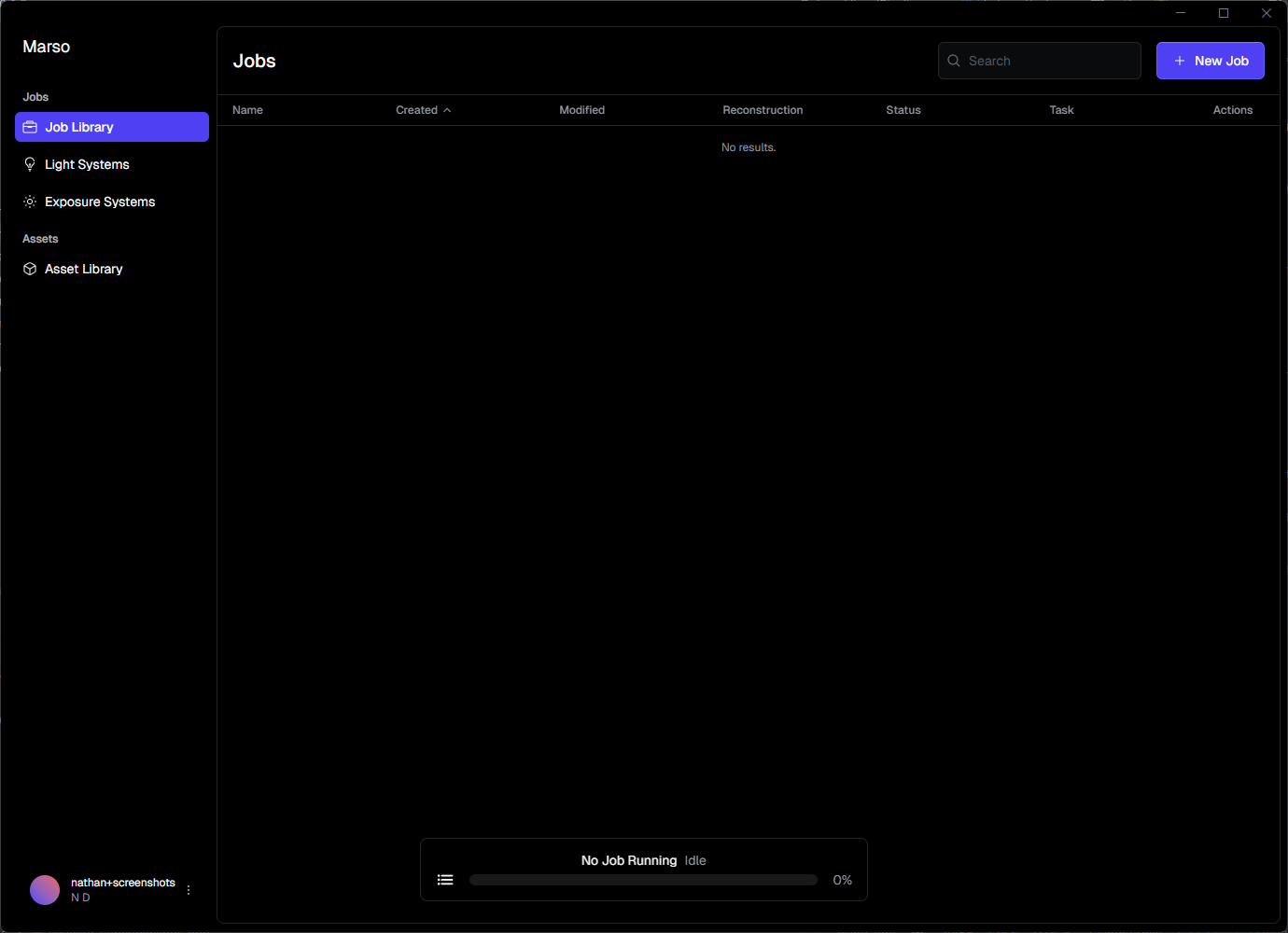
This is the area where you will be able to view all of your jobs. You can click "New Job" in the top right corner to create a new job.
***
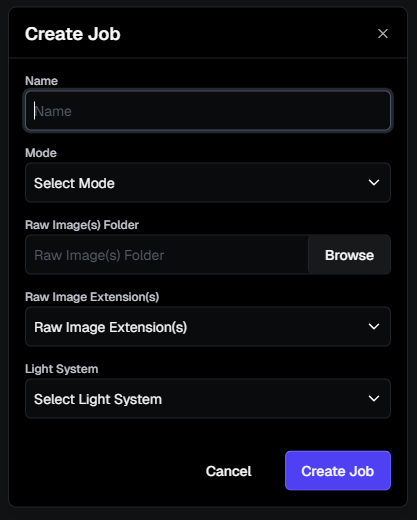
#### **Enter the required information:**
* **Job Name:** A descriptive name that will be used to identify the job throughout processing and once the results are ready.
* **Mode:** Select 'Multi-Viewpoint'. See [here](/marso-measure/resources/marso-measure-processing-options.md#capture-methods) for more information regarding your selection.
* **RAW Images Folder:** Specify the path to the folder containing the raw images for one subject.
* **RAW Images Extension:** Select the image file format, if there are multiple in the input folder.
* **Light Selection:** Choose the Light System. If you haven't already [Create a Light System](/marso-measure/resources/creating-a-light-system.md).
{% hint style="warning" %}
Job Name should contain only letters, numbers, and underscores. Do not use special characters or spaces.
{% endhint %}
***
### Photogrammetry Image Preparation
This process will take the RAW images from the capture folder, and process them into JPEG or EXR images that should be used for photogrammetry.
{% hint style="danger" %}
It is vital that Marso Measure generated photogrammetry images are used, to ensure consistency between the solved scene and the final textures.
{% endhint %}
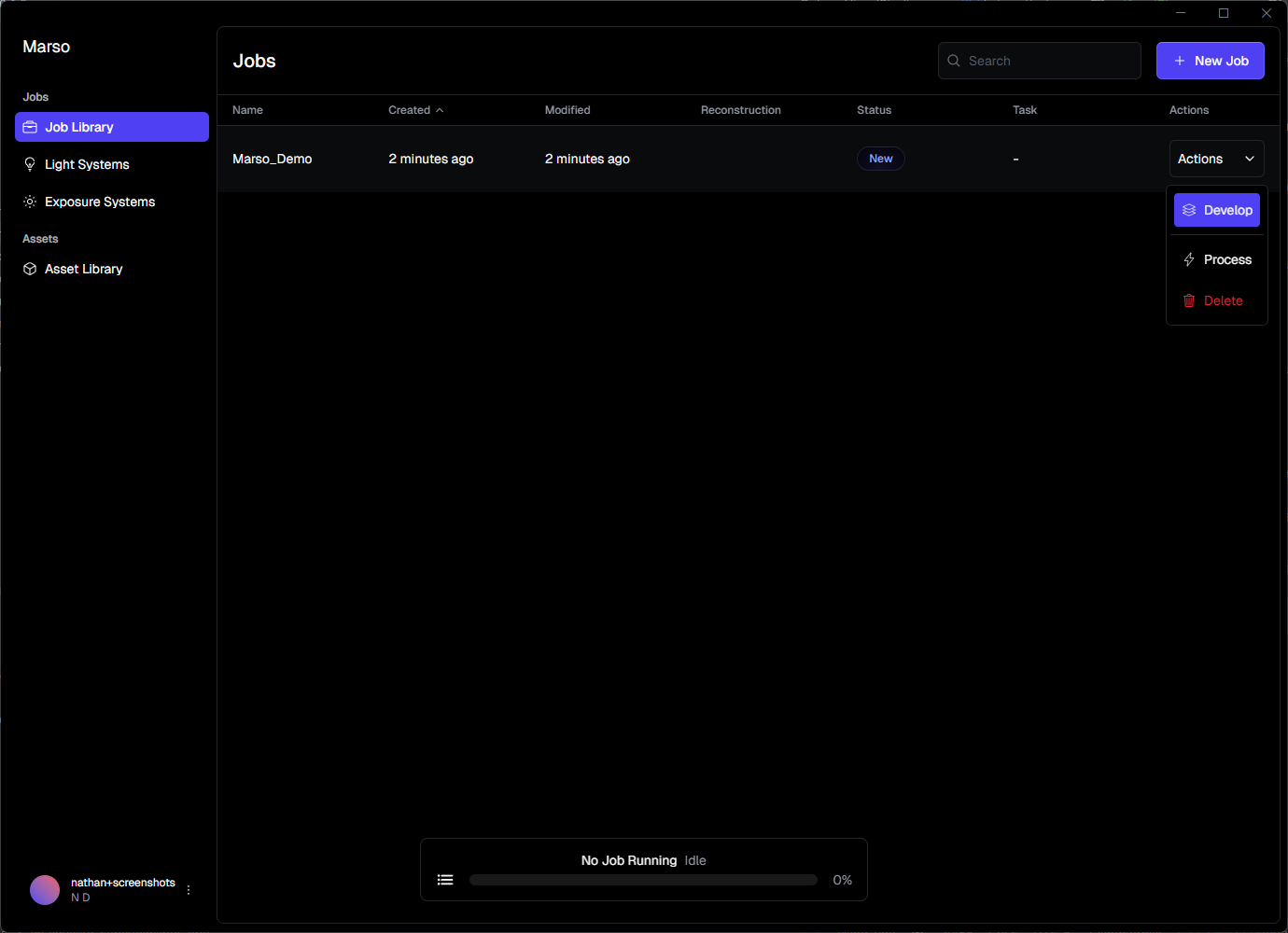
Click the drop down on the right side of Marso Measure, the dropdown should give three options, Develop, Process and Delete. To prepare your images for import into Reality Capture or Agisoft, click Develop.
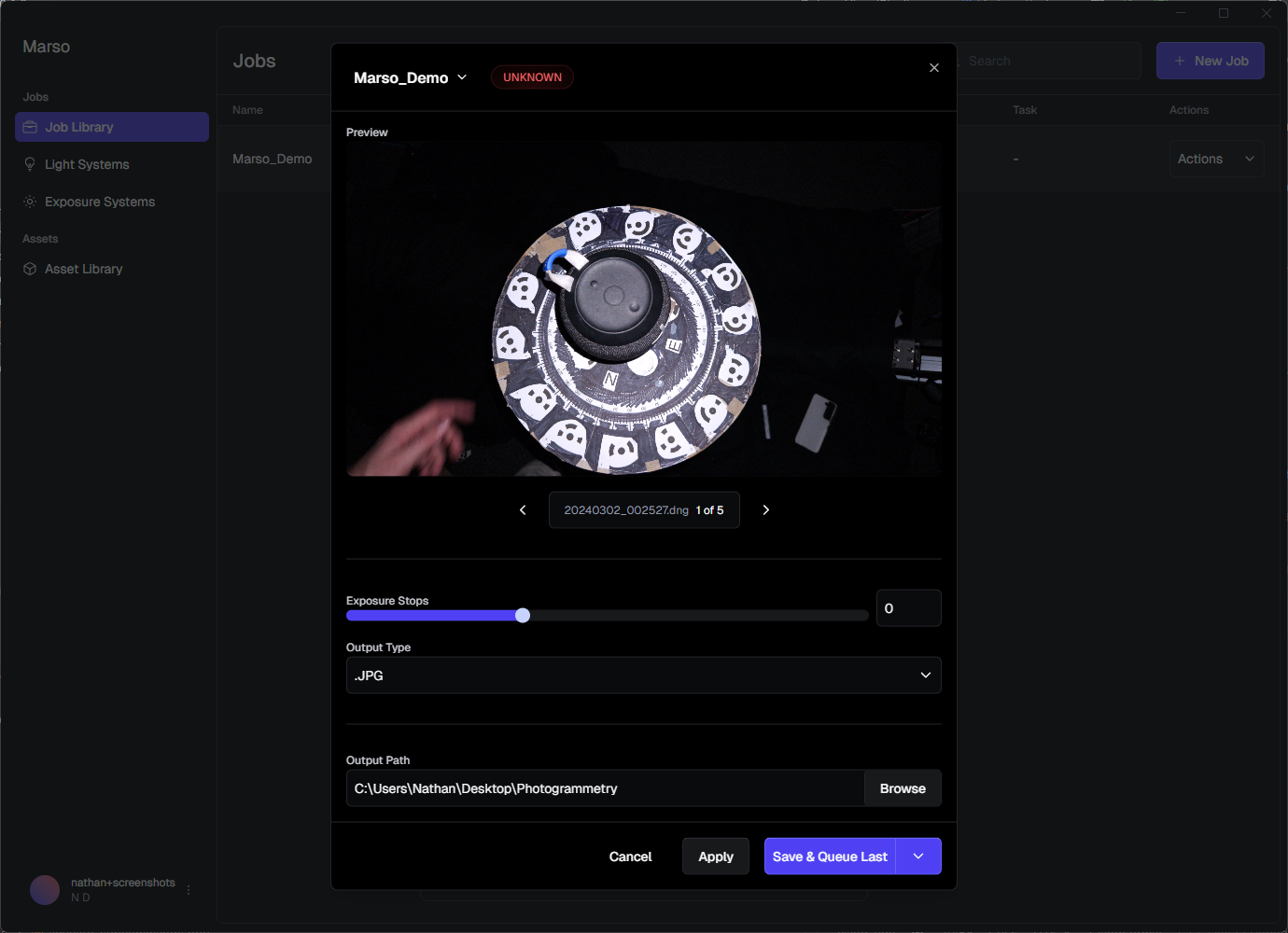
#### Develop Configuration
1. You can use the slide bar to adjust the brightness of images, this is down to user preference. This will not affect the final textures produced by Marso Measure, only the photogrammetry images.
2. You can choose your Output Type, either EXR or JPEG. Reality Capture recommends JPEGs, unless you need to manually modify the image content e.g. masking.
{% hint style="danger" %}
If you are modifying the images, ensure that the names are not changed.
{% endhint %}
3. Choose the output path where the photogrammetry images will be saved.
4. You can click Apply to save your chances, you can also Save & Queue Last, Save & Queue Next or Save & Start Now depending on your preference for this job.
---
# Agent Instructions
This documentation is published with GitBook. GitBook is the documentation platform designed so that both humans and AI agents can read, navigate, and reason over technical content effectively. Learn more at gitbook.com.
## Querying This Documentation
If you need additional information that is not directly available in this page, you can query the documentation by asking a question.
Perform an HTTP GET request on the following URL with the `ask` and `goal` query parameters:
```
GET https://docs.m-xr.com/marso-measure/getting-started/create-job.md?ask=&goal=
```
`ask` is the immediate question: it should be specific, self-contained, and written in natural language.
`goal` is what the user is ultimately trying to achieve, the reason they need the answer. Sharing it helps GitBook give you a better, more relevant answer. A goal is most helpful when it describes the outcome the user wants rather than restating the question. For example, with `ask=how do I create an API token`, a goal like `automate deployments from our CI pipeline` lets GitBook tailor the answer to that use case.
The response will contain a direct answer to the question and relevant excerpts and sources from the documentation.
Use this mechanism when the answer is not explicitly present in the current page, you need clarification or additional context, or you want to retrieve related documentation sections.