> For the complete documentation index, see [llms.txt](https://docs.m-xr.com/llms.txt). Markdown versions of documentation pages are available by appending `.md` to page URLs; this page is available as [Markdown](https://docs.m-xr.com/marso-measure/resources/photogrammetry-tips/agisoft-metashape.md).
# Agisoft Metashape
If you are using Agisoft for photogrammetry, please follow this page for guidance.
## Scaling
Agisoft Metashape | Standard
Agisoft Metashape Standard does not offer a way to automatically set scale. For best practice, we recommend using [Blender](https://www.blender.org/download/) (a free 3D application) to do this by hand.
{% hint style="info" %}
You will require an Alembic file that includes cameras & a UV unwrapped mesh.
{% endhint %}
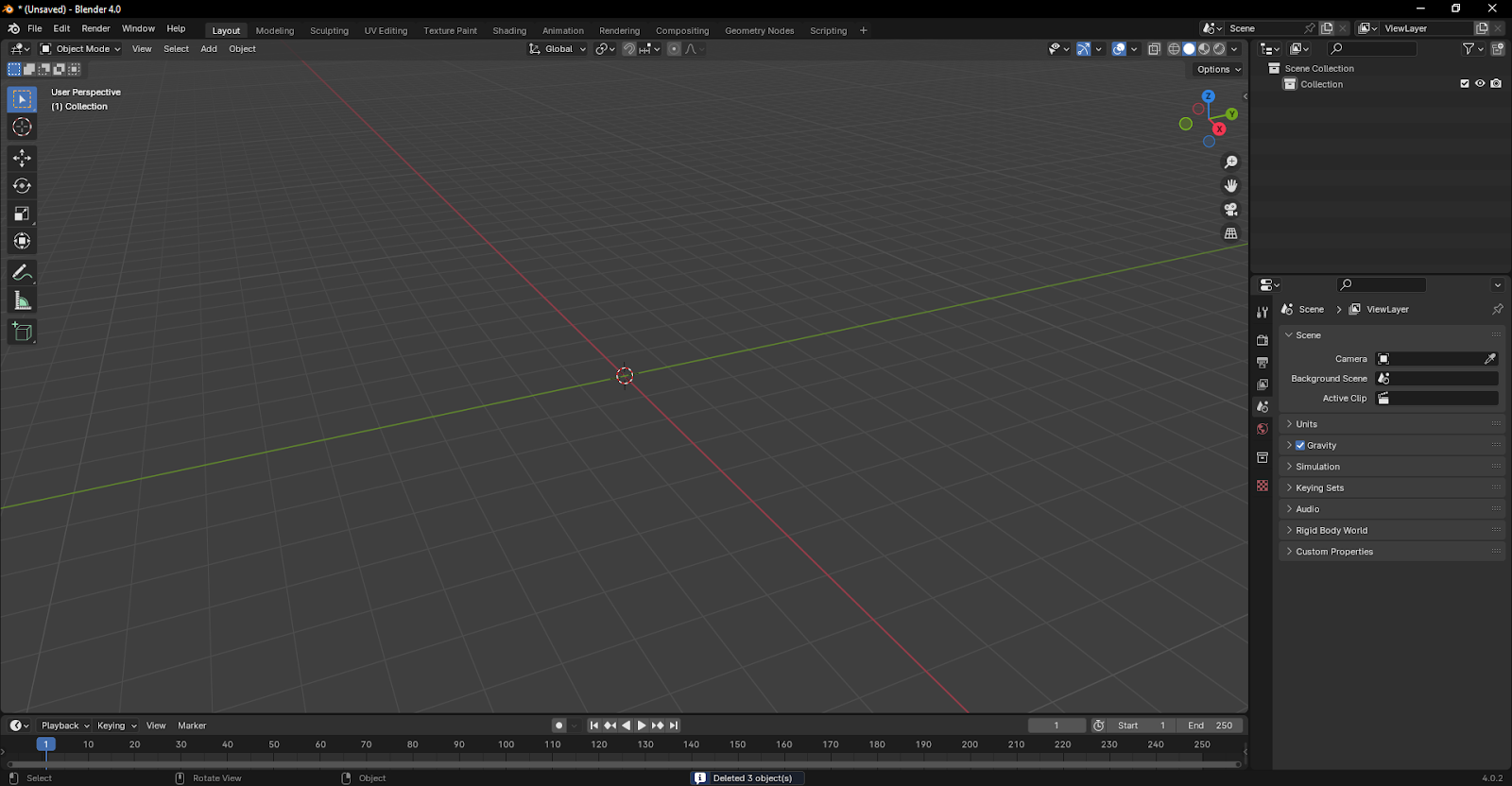
Open a new ‘General’ blender scene and delete all of the default objects, your scene should look like this:
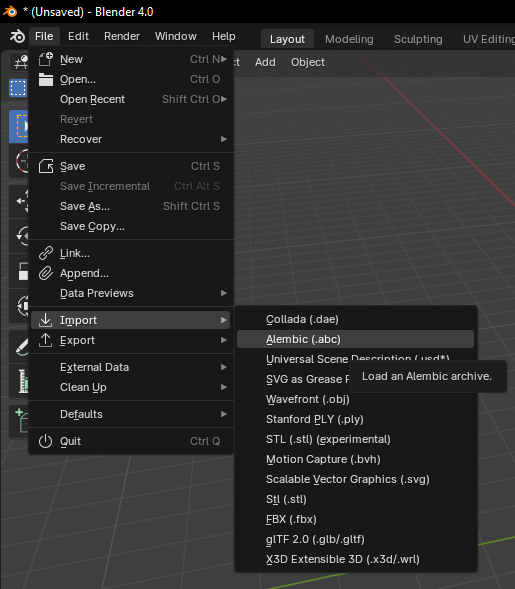
To Import an Alembic file : `File -> Import -> Alembic`
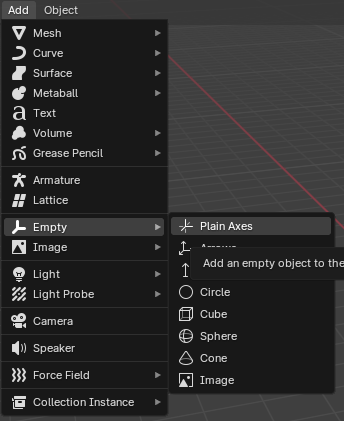
After importing, the mesh and cameras should be in your scene. Create an empty object, this will be used to apply the same scale to the mesh and all the cameras:
Select everything except the ‘Empty’:
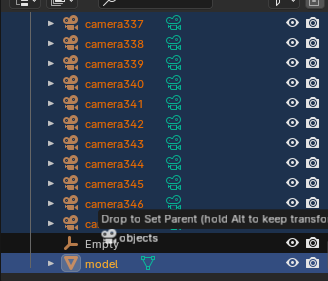
Then Shift+Drag the selected items into the empty:
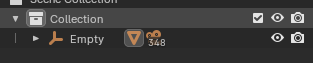
It should look like this:
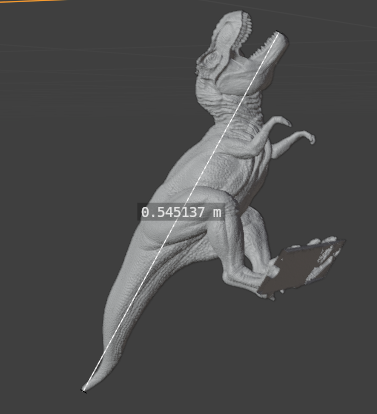
Using the measure tool (Shift+Spacebar, M), hold Ctrl to snap the tool to two points in the mesh, like so:
\
Then compare this distance to the real life distance. If you divide this distance by the real life distance you end up with a scale factor.
On the object properties menu for the ‘Empty’, insert the computed scale factor into the three scale input boxes:
Use the measure tool again to confirm the distance is now correct.
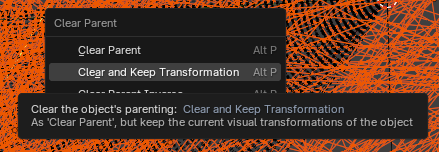
Now select all cameras and the mesh, press Alt+P to bring up the Clear Parent dialog, and select Clear and Keep Transformation:
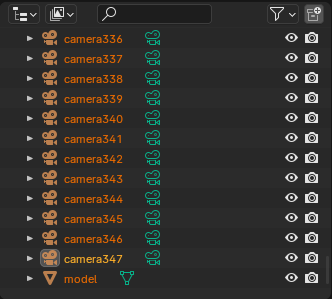
Delete the ‘Empty’ from the scene, your outline should only have the cameras and mesh now:
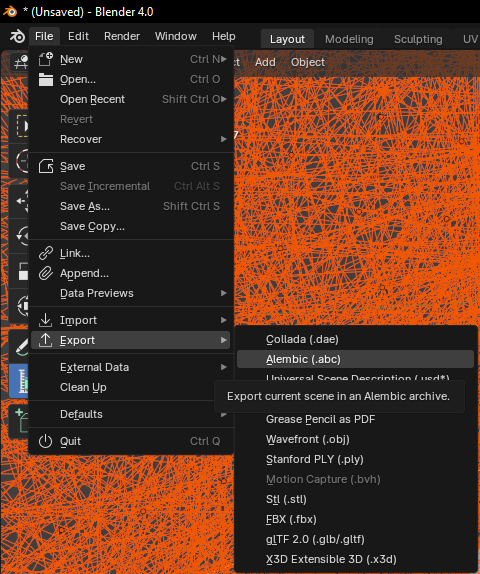
Now export the scaled alembic:
This scaled alembic is the one you want to select during the run dialog in Marso.
Agisoft Metashape | Pro
Scaling can be done quite easily by using markers and setting a scale bar.
## Exporting
{% tabs %}
{% tab title=" Exporting Alembic" %}
To export an alembic from Agisoft:
1. Go to file.
2. Go down to export, then click on export model.
3. Select a name and press save.
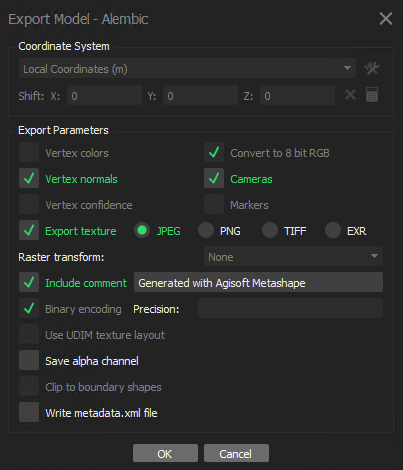
After pressing save, an export model window will appear.
{% hint style="warning" %}
You must enable vertex normals and cameras, your settings should look like the below images.
{% endhint %}
{% endtab %}
{% tab title="Exporting ST Map" %}
In Agisoft Metashape, by default, all cameras should solve into a single group resulting in them all sharing the same lens distortion profile.
To export an ST Map:
1. Go to tools.
2. Go down to camera calibration.
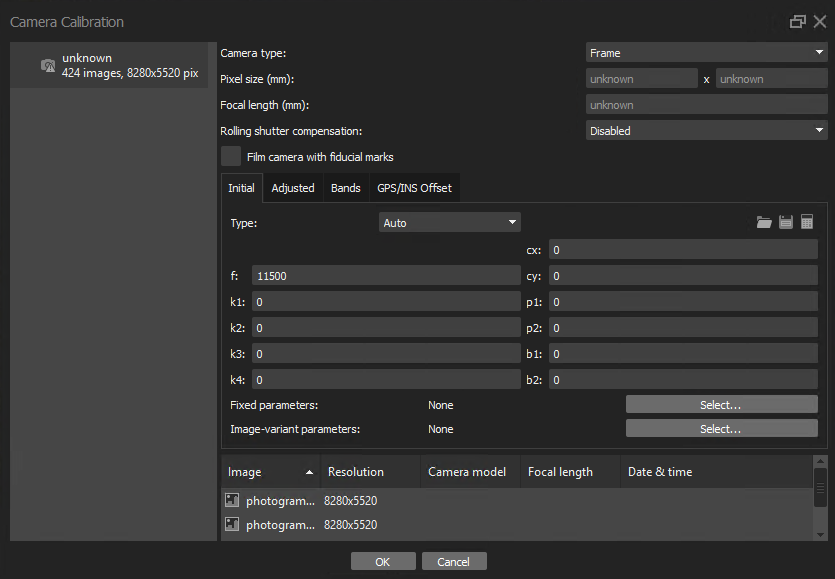
3. You should see a single-camera group on the left pane (see below for an example).
{% hint style="danger" %}
If you have multiple camera groups within your scene with different camera solves, Marso will not work.
{% endhint %}
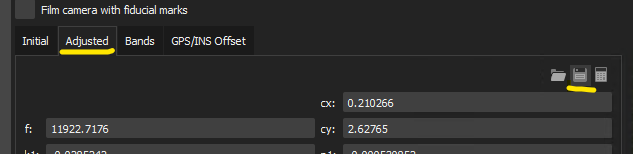
4. Switch from the 'initial' to the 'adjusted' tab.
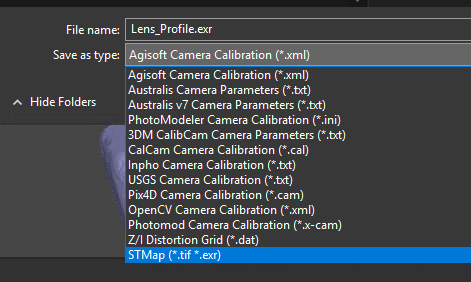
5. Set the save type as 'STMap (\*tif\*.exr)'. Type in a meaninful file name such as 'Lens\_Profile'. By default, the extension of the file will be ‘.tif' , **ensure** that this is changed to ‘.exr’.
{% endtab %}
{% endtabs %}
---
# Agent Instructions
This documentation is published with GitBook. GitBook is the documentation platform designed so that both humans and AI agents can read, navigate, and reason over technical content effectively. Learn more at gitbook.com.
## Querying This Documentation
If you need additional information that is not directly available in this page, you can query the documentation by asking a question.
Perform an HTTP GET request on the following URL with the `ask` and `goal` query parameters:
```
GET https://docs.m-xr.com/marso-measure/resources/photogrammetry-tips/agisoft-metashape.md?ask=&goal=
```
`ask` is the immediate question: it should be specific, self-contained, and written in natural language.
`goal` is what the user is ultimately trying to achieve, the reason they need the answer. Sharing it helps GitBook give you a better, more relevant answer. A goal is most helpful when it describes the outcome the user wants rather than restating the question. For example, with `ask=how do I create an API token`, a goal like `automate deployments from our CI pipeline` lets GitBook tailor the answer to that use case.
The response will contain a direct answer to the question and relevant excerpts and sources from the documentation.
Use this mechanism when the answer is not explicitly present in the current page, you need clarification or additional context, or you want to retrieve related documentation sections.
 To Import an Alembic file : `File -> Import -> Alembic`
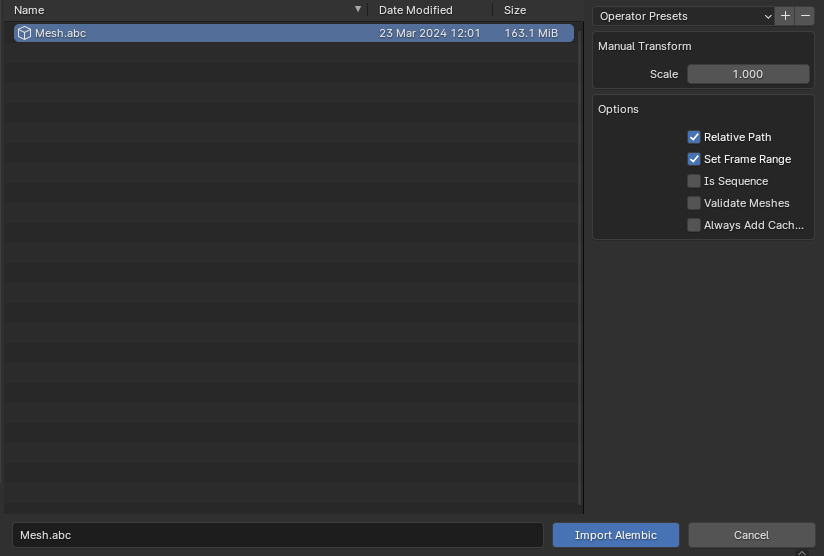 After importing, the mesh and cameras should be in your scene. Create an empty object, this will be used to apply the same scale to the mesh and all the cameras:
 Select everything except the ‘Empty’:
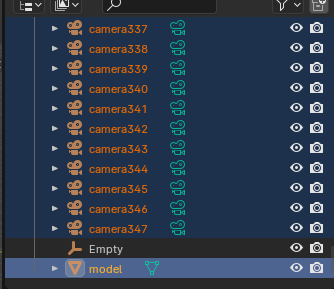 Then Shift+Drag the selected items into the empty:
 It should look like this:
 Using the measure tool (Shift+Spacebar, M), hold Ctrl to snap the tool to two points in the mesh, like so:
 \
Then compare this distance to the real life distance. If you divide this distance by the real life distance you end up with a scale factor.
On the object properties menu for the ‘Empty’, insert the computed scale factor into the three scale input boxes:
\
Then compare this distance to the real life distance. If you divide this distance by the real life distance you end up with a scale factor.
On the object properties menu for the ‘Empty’, insert the computed scale factor into the three scale input boxes:
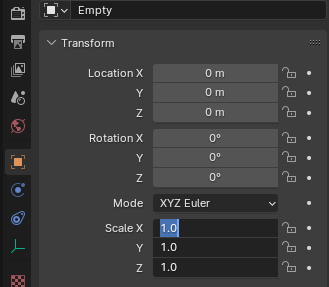 Use the measure tool again to confirm the distance is now correct.
Now select all cameras and the mesh, press Alt+P to bring up the Clear Parent dialog, and select Clear and Keep Transformation:
Use the measure tool again to confirm the distance is now correct.
Now select all cameras and the mesh, press Alt+P to bring up the Clear Parent dialog, and select Clear and Keep Transformation:
 Delete the ‘Empty’ from the scene, your outline should only have the cameras and mesh now:
 Now export the scaled alembic:
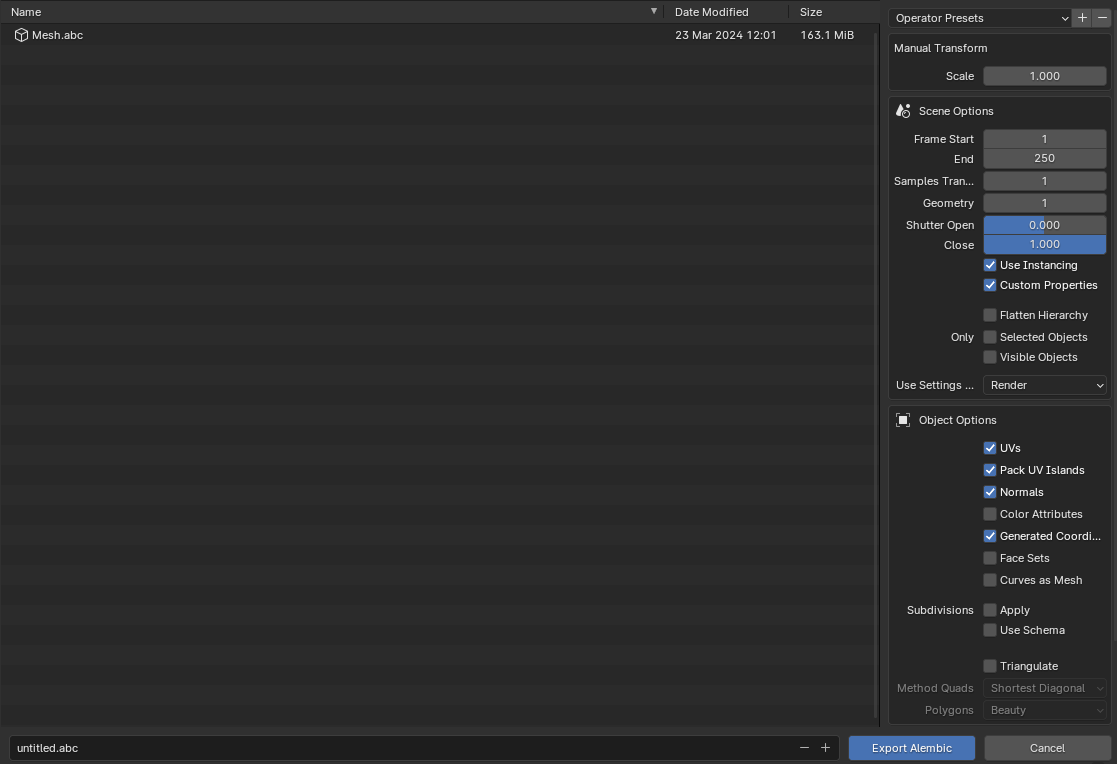 This scaled alembic is the one you want to select during the run dialog in Marso.
.png)