> For the complete documentation index, see [llms.txt](https://docs.m-xr.com/llms.txt). Markdown versions of documentation pages are available by appending `.md` to page URLs; this page is available as [Markdown](https://docs.m-xr.com/marso-measure/resources/advanced-exposure-calibration.md).
# Advanced Exposure Calibration
The Advanced Exposure Solve allows Marso Measure to calculate an accurate exposure compensation directly from a photogrammetry reconstruction. This allows precise exposure calibration.
### Why complete an advanced exposure calibration?
This process helps with maintaining colour accuracy and an even exposure.
### **Prerequisites**
Before starting, ensure you have:
* A **colour checker,** check compatible colour checkers [here](/marso-measure/resources/capturing-a-calibration-image/grey-cards-or-known-values.md)
* Your **chosen lighting preset** configured
* Final **camera settings** locked in (shutter speed, ISO, aperture)
* A capture space with **textured surfaces and markers** for a clean photogrammetry solve
***
### **Notes & Best Practices**
* Always use **consistent lighting** between calibration and real captures
* Recreate the exposure solve whenever lighting presets or camera settings change
* Ensure the grey tile mesh is smooth and evenly reconstructed - clean the tile before capturing if there are any scuffs or marks on the grey tile you want to capture
* Use plenty of markers to guarantee scale accuracy
***
### **1. Capture your grey card**
The goal is to create a high-quality reconstruction of the grey tile under your chosen lighting conditions.
{% hint style="success" %}
Use a flat, detailed surface **on the ground** and surround the chart with **markers and measurements** for alignment accuracy.
{% endhint %}
### **1. Capture**
1. **Set the lighting and camera exposure**\
Use the exact lighting strength, flash mode, and exposure settings you intend to use in production captures.
2. **Top-down orthographic pass**\
Capture the colour checker in a grid pattern from above.
* Purpose: the grey value should be lit evenly from all frontal angles.
3. **Ring formation pass**\
Capture the colour checker in a circular sweep at multiple heights.
* Purpose: to provide data from different incidence angles for a more robust 3D solve.
#### Example capture
{% hint style="info" %}
You will see on the image below, we have placed the colour card on a pair of jeans with detail that helps align the mesh. You can use any object that has enough detail, avoid glossy or featureless floors.
{% endhint %}
.png?alt=media\&token=e74a0adc-f065-4157-afef-6ff8f1bab565)
***
### **2. Process the Images Through Marso Measure Develop**
Once all photos are captured:
1. Run the images through **Marso Measure Develop step**\
→ this converts the raw files into a format suitable for your photogrammetry software.
***
### **3. Create a Mesh of the Colour Checker**
Import your processed images into your photogrammetry software (Metashape or Reality Capture).
#### **Steps**
1. Solve alignment
2. Build the dense cloud and mesh
3. Use markers and scale bars for maximum accuracy
4. Ensure the colour checker surface is reconstructed cleanly
***
### **4. Isolate the Grey Tile**
The Advanced Exposure System requires a **mesh containing only the grey tile**.
#### **How to Isolate**
**Metashape:**
* Select the grey region using the bounding box
* Right-click the mesh → **Duplicate**
* **Clip by Region** to isolate the patch
**Reality Capture:**
* Use:\
`Scene 3D > Tools > Mesh Model > Cut by Box`
***
### **5. Export Required Files**
Export the following from your isolated grey tile:
| File Type | Purpose |
| ------------------ | ----------------------------------------- |
| **Alembic (.abc)** | 3D mesh of the grey square |
| **ST Map (EXR)** | Lens distortion map from solve |
| **PNG UV Mask** | Isolates the grey patch during processing |
***
### **6. Create the Advanced Exposure System in Marso Measure**
If you haven’t already, [create a **Light System** for your light](https://docs.m-xr.com/marso-measure/resources/creating-a-light-system)
Then, in Marso Measure, navigate to:
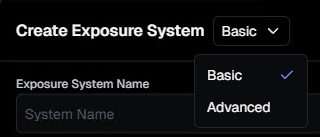
**Exposure Systems → New Exposure System → Toggle from “Basic” to “Advanced”**
***
### **7. Configure the Advanced Exposure System**
Fill in the following fields:
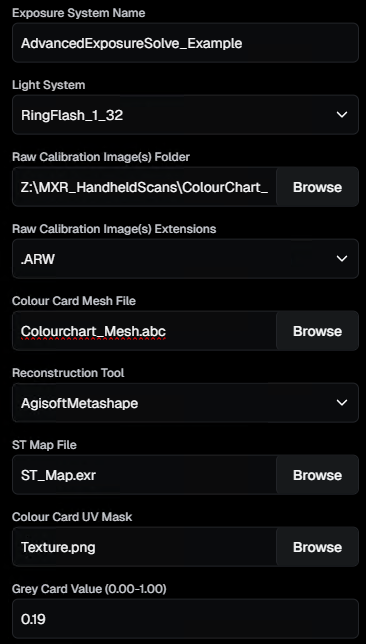
#### **Exposure System Name**
Use a clear naming scheme including camera model + exposure + light preset.\
e.g.,\
`A7R4_ISO100_F11_1/125_PtLight70%`
#### **Light System**
Select the light system previously created for your rig.
#### **Raw Calibration Image(s)**
Raw images used for the colour checker photoscan.
#### **Raw Image Extension**
#### **Colour Card Mesh File**
The Alembic mesh of the isolated grey tile.
#### **Reconstruction Tool**
Photogrammetry tool used:
* Metashape
* Reality Capture
#### **ST Map File**
EXR export from your grey square mesh.
#### **Colour Card UV Mask**
PNG mask defining the grey region.
#### **Grey Value**
Decimal place of the percentage of the grey value of your selected grey tile.\
Reference values can be found [here](/marso-measure/resources/capturing-a-calibration-image/grey-cards-or-known-values.md).
***
### **8. Finalise the Exposure System**
Click **Create Exposure System**\
→ Marso will now use the 3D geometry and lighting information to accurately calculate grey values across your capture workflow.
---
# Agent Instructions
This documentation is published with GitBook. GitBook is the documentation platform designed so that both humans and AI agents can read, navigate, and reason over technical content effectively. Learn more at gitbook.com.
## Querying This Documentation
If you need additional information that is not directly available in this page, you can query the documentation by asking a question.
Perform an HTTP GET request on the following URL with the `ask` and `goal` query parameters:
```
GET https://docs.m-xr.com/marso-measure/resources/advanced-exposure-calibration.md?ask=&goal=
```
`ask` is the immediate question: it should be specific, self-contained, and written in natural language.
`goal` is what the user is ultimately trying to achieve, the reason they need the answer. Sharing it helps GitBook give you a better, more relevant answer. A goal is most helpful when it describes the outcome the user wants rather than restating the question. For example, with `ask=how do I create an API token`, a goal like `automate deployments from our CI pipeline` lets GitBook tailor the answer to that use case.
The response will contain a direct answer to the question and relevant excerpts and sources from the documentation.
Use this mechanism when the answer is not explicitly present in the current page, you need clarification or additional context, or you want to retrieve related documentation sections.